
Learn More :
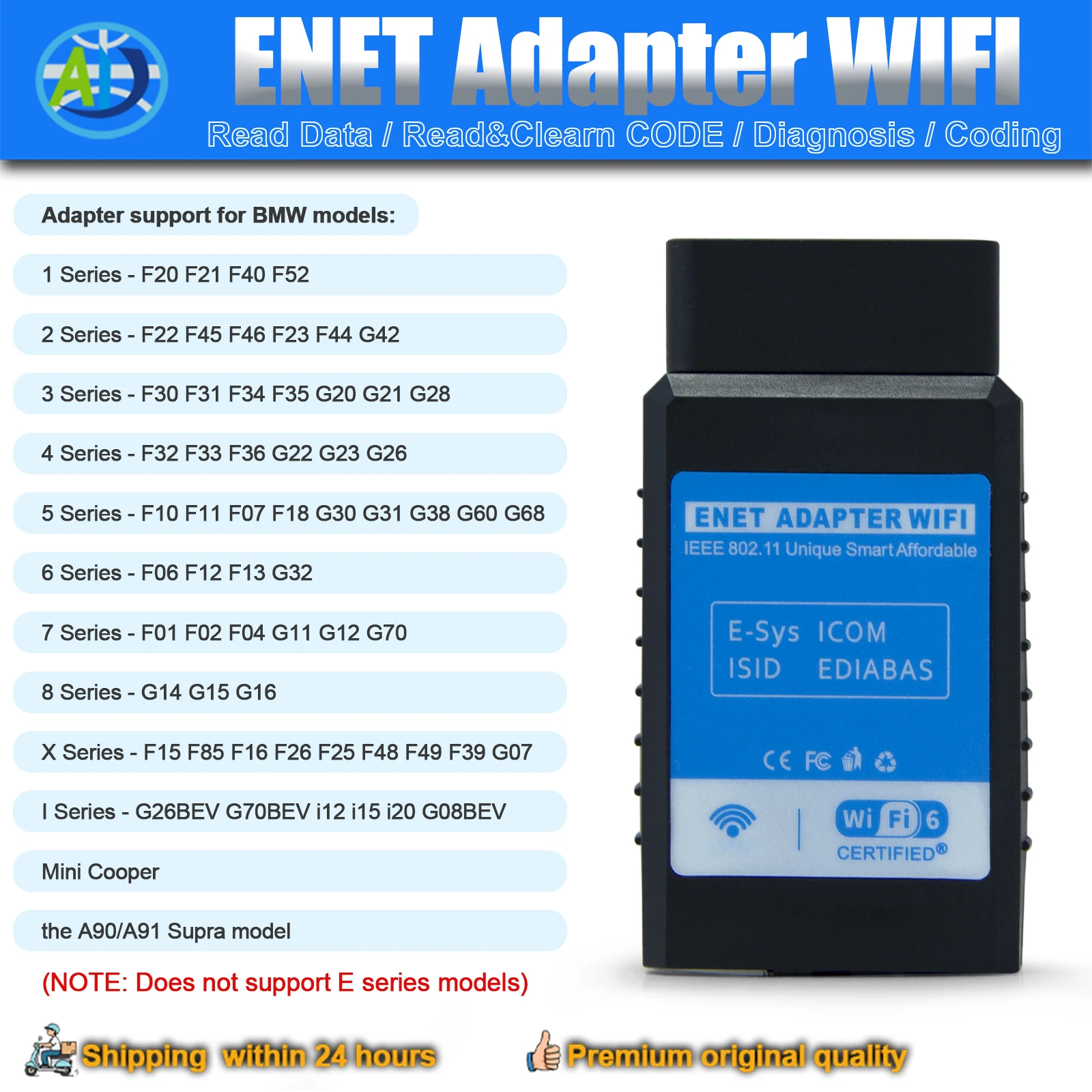
1.The ENET WiFi Adapter is a cutting-edge diagnostic tool designed for F/G series vehicles. This device allows you to connect wirelessly to your vehicle’s electronic control unit (ECU), providing you with real-time access to critical data about your car’s performance and condition.
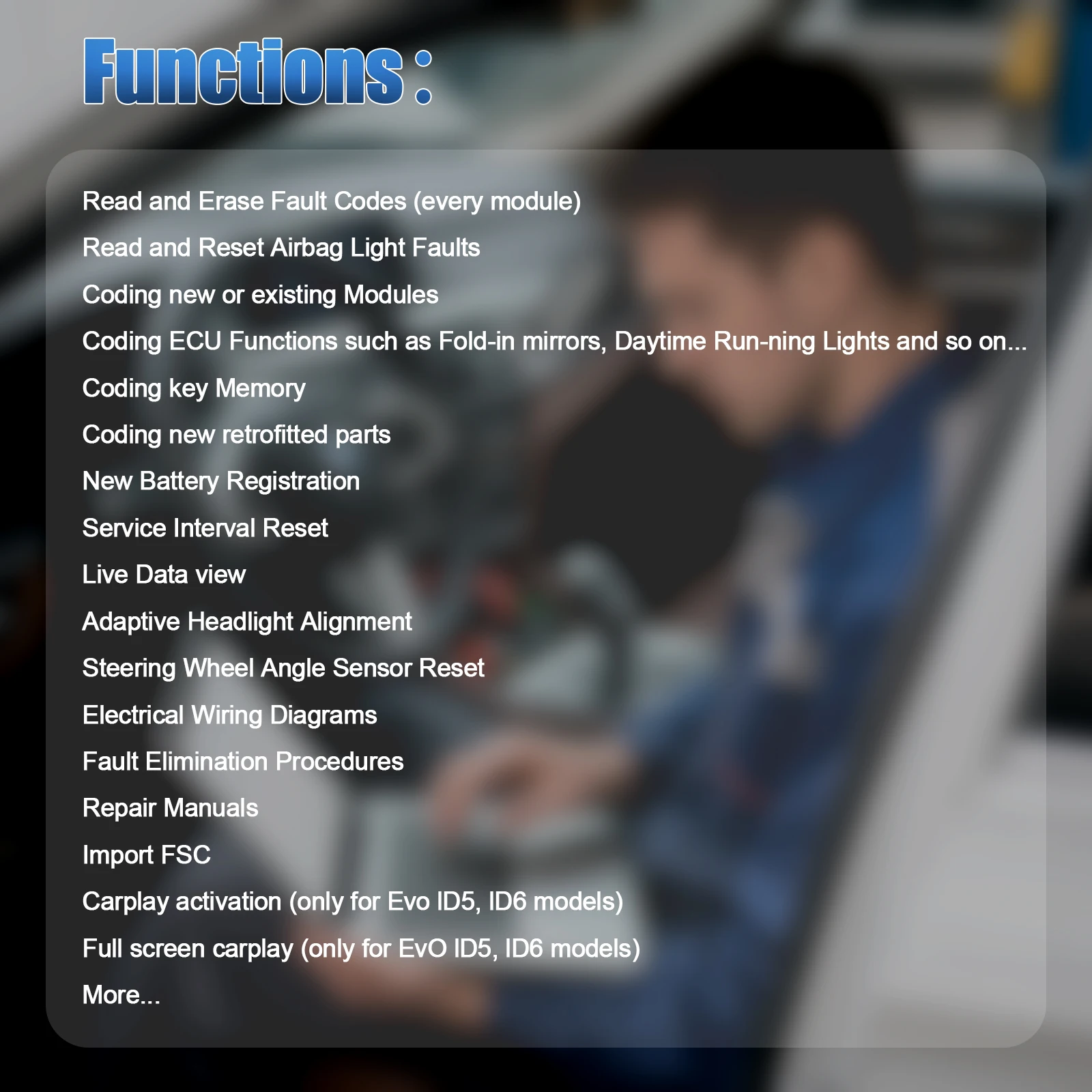
Unlike traditional OBDII scanners, which are limited in their capabilities, the ENET WiFi Adapter offers advanced diagnostics and coding functions that allow you to customize your BMW to your exact specifications. With this powerful tool, you can perform in-depth analysis of your vehicle’s systems, diagnose and clear fault codes, and even enable hidden features that are not available through the standard OBDII interface.
What sets the ENET WiFi Adapter apart from other diagnostic tools on the market is its easy-to-use interface and wireless connectivity. Simply plug the adapter into your BMW’s OBD-II port, connect to it using your smartphone or tablet, and start diagnosing and coding your BMW immediately. Plus, with its compact design and durable construction, the ENET WiFi Adapter is built to withstand the rigors of everyday use and provide you with years of reliable service.
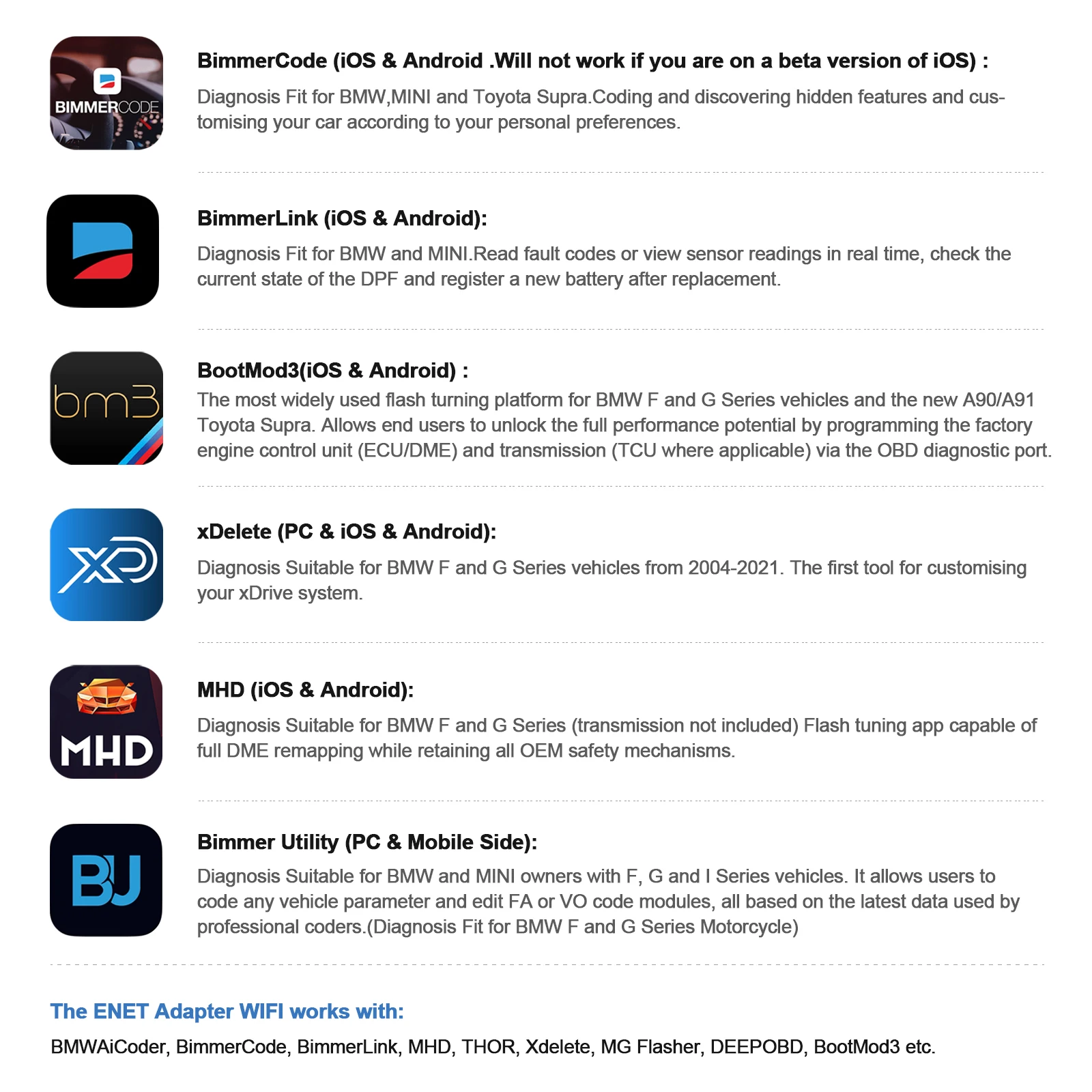
2.Compatible Apps (Requires separate download from Google Play Store or Apple App Store, some may require purchase):
– BimmerCode (iOS & Android .Will not work if you are on a beta version of iOS) :
Coding and discovering hidden features and customising your car according to your personal preferences.
– BimmerLink (iOS & Android):
Read fault codes or view sensor readings in real time, check the current state of the DPF and register a new battery after replacement.
– BootMod3(iOS & Android) :
The most widely used flash turning platform for F and G Series vehicles and the new A90/A91 Toyota Supra. Allows end users to unlock the full performance potential by programming the factory engine control unit (ECU/DME) and transmission (TCU where applicable) via the OBD diagnostic port.
– xDelete (PC & iOS & Android):
Suitable for F and G Series vehicles from 2004-2021. The first tool for customising your xDrive system.
– MHD (iOS & Android):
Suitable for F and G Series (transmission not included) Flash tuning app capable of full DME remapping while retaining all OEM safety mechanisms.
– Bimmer Utility (PC & Mobile Side):
Suitable for F, G and I Series vehicles. It allows users to code any vehicle parameter and edit FA or VO code modules, all based on the latest data used by professional coders.(Fit for F and G Series Motorcycle)
– DEEP OBD (Google Play):
Suitable for F Series. Uses ECU files for OBD communication.
– ISTA/ESYS/INPA…
And Many other apps.
Note:
It will not work with Supra/G series XHp tunes but it does work for the F series.
Compatibility Models:
Compatible with F Chassis Series:
3 Series: F30,F35,F34;
5 Series: F10,F07,F18;
7 Series: F01,F02
Compatible with SUV/M series and other series:
SUV Series: X1(F48), X3(F25), X5(F15), X6(F16);
M Series: M3(F80), M4(F82/F83), MF(F10), M6(F12/F13);
6 Series: F06, F12, F13;
8 Series: I12
Compatible with G Chassis Series:
3 Series: G20, G28;
5 Series: G30, G38, I5(G60);
7 Series: G70, G71;
SUV Series: X3(G01), X5(G05), X6(G06), X7(G07)
M Series and other series: M3(G80), M4(G82/G83), M5(G90), X5 M(F95), i4(G26), iX3(G08), iX(I20)
Compatible with I Chassis Series:
i3(I01), iX(I20), i7(G70/I70)
Compatible with Mini Cooper
Compatible with A90/A91 Supra models.
Note:
Not compatible for BMW E Series Models.
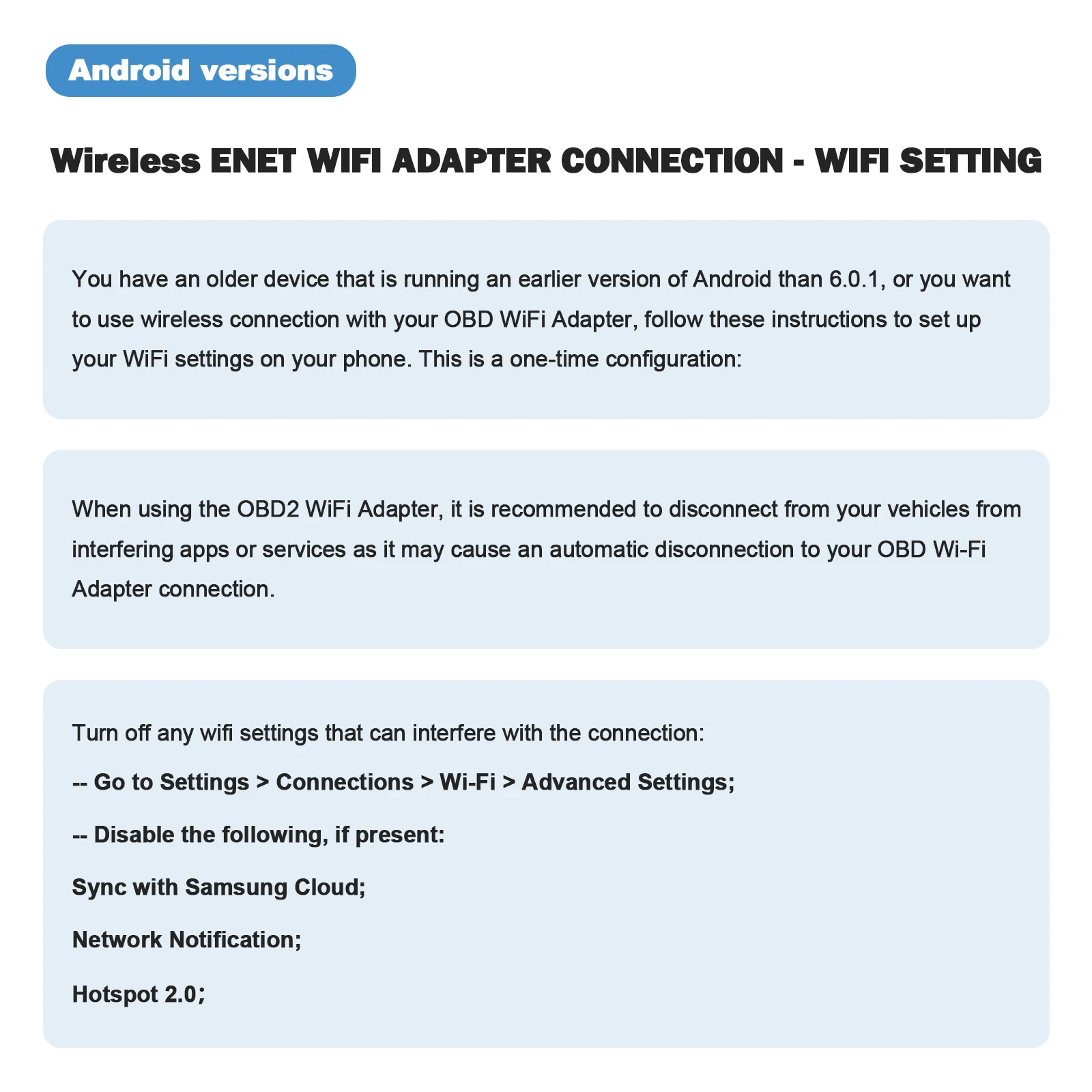
Wireless ENET WIFI ADAPTER CONNECTION – WIFI SETTINGS (Android versions)
You have an older device that is running an earlier version of Android than 6.0.1, or you want to use wireless connection with your OBD WiFi Adapter, follow these instructions to set up your WiFi settings on your phone. This is a one-time configuration:
When using the OBD2 WiFi Adapter, it is recommended to disconnect from your vehicles from interfering apps or services as it may cause an automatic disconnection to your OBD Wi-Fi Adapter connection.
Turn off any wifi settings that can interfere with the connection:
— Go to Settings > Connections > Wi-Fi > Advanced Settings;
— Disable the following, if present:
Sync with Samsung Cloud;
Network Notification;
Hotspot 2.0;
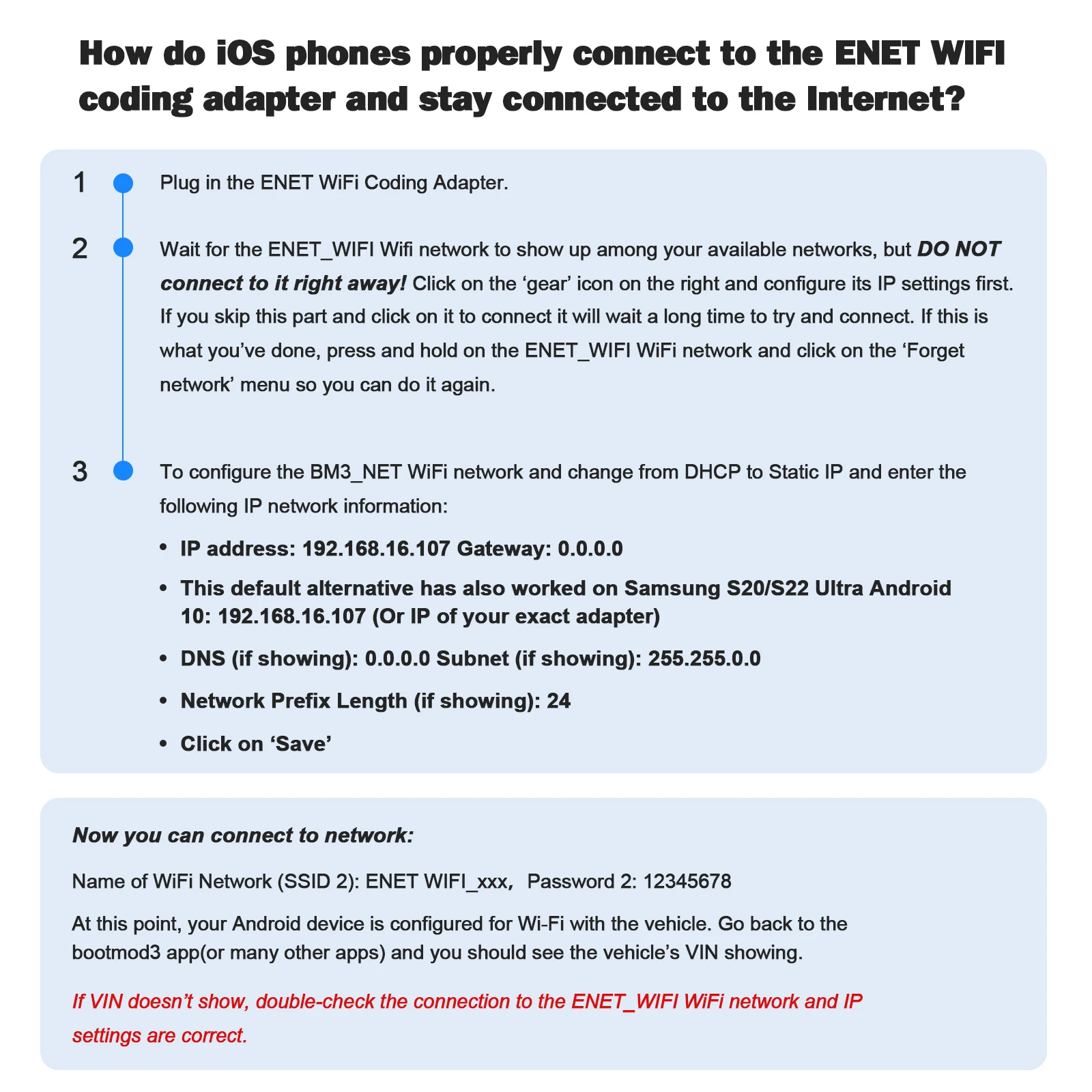
How do iOS phones properly connect to the enet wifi coding adapter and stay connected to the Internet?
1.Plug in the ENET WiFi Coding Adapter.
2.Wait for the ENET_WIFI Wifi network to show up among your available networks, but DO NOT connect to it right away! Click on the ‘gear’ icon on the right and configure its IP settings first. If you skip this part and click on it to connect it will wait a long time to try and connect. If this is what you’ve done, press and hold on the ENET_WIFI WiFi network and click on the ‘Forget network’ menu so you can do it again.
3.To configure the BM3_NET WiFi network and change from DHCP to Static IP and enter the following IP network information:
–IP address: 192.168.16.107 Gateway: 0.0.0.0
–This default alternative has also worked on Samsung S20/S22 Ultra Android 10: 192.168.16.107 (Or IP of your exact adapter)
–DNS (if showing): 0.0.0.0 Subnet (if showing): 255.255.0.0
–Network Prefix Length (if showing): 24
–Click on ‘Save’
Now you can connect to network:
Name of WiFi Network (SSID 2): ENET WIFI_xxx,Password 2: 12345678
At this point, your Android device is configured for Wi-Fi with the vehicle. Go back to the bootmod3 app(or many other apps) and you should see the vehicle’s VIN showing.
If VIN doesn’t show, double-check the connection to the ENET_WIFI WiFi network and IP settings are correct.
ENET Cable Connection – for Ethernet Settings(IOS Version, For example for bootmod3)
There are no required settings to get this going on your phone. After plugging the ENET cable in and waiting 20-30 seconds the app will show your vehicle’s VIN.
When using the ENET cable connection, it is recommended to turn off WiFi and Bluetooth on your iOS device due to CarPlay may cause disconnects to your ENET connection.
To speed up iOS vehicle detection, you can enter the following Ethernet settings on your iOS device:
ENET cable MUST be connected to your iOS device to see the Ethernet menu under Settings and configure them.
Go to Settings——Ethernet ——USB 10/100 LAN ——Configure IP: Change this from Automatic to Manual and enter the following network settings:
IP: 169.254.250.250
Subnet Mask: 255.255.0.0
Router: (leave empty)
Some rebranded generic ENET WiFi adapters alter the vehicle’s IP configuration from default. These settings will reset after the vehicle sleeps for at least 20-30 minutes. To avoid waiting that long and have it reset vehicle’s network configuration, disconnect the ground wire on the vehicle’s battery for 3 minutes and reconnect it.
ENET Cable Connection – Ethernet Settings (Android 11 and up Version,For example for bootmod3)
The most recent update to Android 11 One UI 3.0, dubbed “Security Update”, and, it’s now easier to connect with Android and keep your internet/mobile data connection alive! Android 11 has a new Ethernet connection option called “Ethernet Tethering”. To get started with Android 11, make sure the latest update has been installed.
— Connect the USB-Ethernet adapter to your Android 11 device. Go into Settings——Connections——Mobile Hotspot and Tethering——Here you enable the Ethernet Tethering option (see screenshots).
There’s still a bug on Android when you tap this and it turns off once you tap it. Just make sure it STAYS ON before you come back to the bootmod3 app. The first time after the Android 11 update, the Android Settings app can crash. In this case, the phone has to be restarted. Then try again.
Here are the Ethernet settings to configure on your Android 6.0.1 – Android 10 device for proper connectivity. This is a one-time configuration:
ENET cable MUST be connected to your Android device to see the Ethernet menu under settings and configure them.
Ensure that the Ethernet setting shows DISCONNECTED. If showing connected, you won’t be able to update the settings below until you tap the toggle button to disconnect.
1.Go to Settings——Connections ——More connection settings—— Ethernet ——Configure Ethernet device. Change from DHCP to Static IP (click on Static IP)
2.Enter the following IP settings. Hit ‘Save’ at the bottom. And back on the Ethernet screen, toggle the Ethernet button to the right (to connect).
— IP address: 169.254.250.250
— Netmask: 255.255.0.0
— DNS address: 0.0.0.0
— Default gateway: 0.0.0.0
At this point, your Android device is configured for Ethernet with the vehicle. Go back to the bootmod3 app and you should see the vehicle’s VIN showing.
Please note,
1. Some phones do NOT give you the ability to utilize full functionality of the Enet Wifi Adapter and are forced to offline mode only. iPhones do not have this issue, but select Android devices may be this way. For example, if you have a Goog-le Pixel phone, you will have limitations, due to the phone’s software.
2. It will not work with Supra/Gseries XHp tunes but it does work for the F series.

How do iOS phones properly connect to the enet wifi coding adapter and stay connected to the Internet?
Step 1
Go to your phone wifi and select the network with the name “ENET WIFI_xxx” and enter the password 1: 12345678 to connect to it.
Then click the “i” in a circle next to the “ENET” WiFi name.
(NOTE:When using the ENET WiFi Adapter, please disconnect from your CarPlay, it may cause an automatic disconnection to your enet wifi adapter connection.)
Step 2
Scroll down and find the Configure IP option. Click on “Automatic” that’s next to the “Configure IP” and choose Manual.
Step 3
Change the Configure IP from Automatic to Manual.
Then fill in the fields:
IP Address: 192.168.16.150 (or you can use any from 100 to 200 )
Subnet Mask: 255.255.255.0
Important: Leave Router blank.
1)If VIN doesn’t show, double check the above settings and ensure ENET_WIFI is showing under the phone’s Settings and that your IP information is correctly set up.
2)When using the ENET_WIFI WiFi connection, you need to disconnect/disable auto-join for the CarPlay WiFi connection and also disable your Bluetooth to prevent CarPlay from dropping your ENET_WIFI WiFi connection.
3)If VIN doesn’t show, double check the above settings and ensure ENET_WIFI is connected with correct IP settings discussed above.
Step 4
Then save and go to the app you want to connect with.
NOTE:If using iOS 14 or later please check that app is allowed to use the local network: Settings/Privacy/Local Network.Tap “Connect” on the start screen in the app once you have prepared the vehicle for connection.
Wireless ENET WIFI ADAPTER CONNECTION – WIFI SETTINGS (Android versions)
You have an older device that is running an earlier version of Android than 6.0.1, or you want to use wireless connection with your OBD WiFi Adapter, follow these instructions to set up your WiFi settings on your phone. This is a one-time configuration:
When using the OBD2 WiFi Adapter, it is recommended to disconnect from your vehicles from interfering apps or services as it may cause an automatic disconnection to your OBD Wi-Fi Adapter connection.
Turn off any wifi settings that can interfere with the connection:
— Go to Settings > Connections > Wi-Fi > Advanced Settings;
— Disable the following, if present:
Sync with Samsung Cloud;
Network Notification;
Hotspot 2.0
1.Plug in the ENET WiFi Coding Adapter.
2.Wait for the ENET_WIFI Wifi network to show up among your available networks, but DO NOT connect to it right away! Click on the ‘gear’ icon on the right and configure its IP settings first. If you skip this part and click on it to connect it will wait a long time to try and connect. If this is what you’ve done, press and hold on the ENET_WIFI WiFi network and click on the ‘Forget network’ menu so you can do it again.
3.To configure the BM3_NET WiFi network and change from DHCP to Static IP and enter the following IP network information:
1).IP address: 192.168.16.107 Gateway: 0.0.0.0
2).This default alternative has also worked on Samsung S20/S22 Ultra Android 10: 192.168.16.107 (Or IP of your exact adapter)
3).DNS (if showing): 0.0.0.0 Subnet (if showing): 255.255.0.0
4).Network Prefix Length (if showing): 24
5).Click on ‘Save’
Now you can connect to network:
Name of WiFi Network (SSID 2):ENET WIFI_xxx,Password 2:12345678
At this point, your Android device is configured for Wi-Fi with the vehicle. Go back to the bootmod3 app(or many other apps) and you should see the vehicle’s VIN showing.
If VIN doesn’t show, double-check the connection to the ENET_WIFI WiFi network and IP settings are correct.
ENET Cable Connection – for Ethernet Settings(IOS Version, For example for bootmod3)
There are no required settings to get this going on your phone. After plugging the ENET cable in and waiting 20-30 seconds the app will show your vehicle’s VIN.
When using the ENET cable connection, it is recommended to turn off WiFi and Bluetooth on your iOS device due to CarPlay may cause disconnects to your ENET connection.
To speed up iOS vehicle detection, you can enter the following Ethernet settings on your iOS device:
ENET cable MUST be connected to your iOS device to see the Ethernet menu under Settings and configure them.
Go to Settings——Ethernet ——USB 10/100 LAN ——Configure IP: Change this from Automatic to Manual and enter the following network settings:
IP: 169.254.250.250
Subnet Mask: 255.255.0.0
Router: (leave empty)
Some rebranded generic ENET WiFi adapters alter the vehicle’s IP configuration from default. These settings will reset after the vehicle sleeps for at least 20-30 minutes. To avoid waiting that long and have it reset vehicle’s network configuration, disconnect the ground wire on the vehicle’s battery for 3 minutes and reconnect it.
ENET Cable Connection – Ethernet Settings (Android 11 and up Version,For example for bootmod3)
The most recent update to Android 11 One UI 3.0, dubbed “Security Update”, and, it’s now easier to connect with Android and keep your internet/mobile data connection alive! Android 11 has a new Ethernet connection option called “Ethernet Tethering”. To get started with Android 11, make sure the latest update has been installed.
Connect the USB-Ethernet adapter to your Android 11 device. Go into Settings——Connections——Mobile Hotspot and Tethering——Here you enable the Ethernet Tethering option (see screenshots).
1)There’s still a bug on Android when you tap this and it turns off once you tap it. Just make sure it STAYS ON before you come back to the bootmod3 app. The first time after the Android 11 update, the Android Settings app can crash. In this case, the phone has to be restarted. Then try again.
Here are the Ethernet settings to configure on your Android 6.0.1 – Android 10 device for proper connectivity. This is a one-time configuration:
ENET cable MUST be connected to your Android device to see the Ethernet menu under settings and configure them.
Ensure that the Ethernet setting shows DISCONNECTED. If showing connected, you won’t be able to update the settings below until you tap the toggle button to disconnect.
1. Go to Settings——Connections ——More connection settings—— Ethernet ——Configure Ethernet device. Change from DHCP to Static IP (click on Static IP)
2. Enter the following IP settings. Hit ‘Save’ at the bottom. And back on the Ethernet screen, toggle the Ethernet button to the right (to connect).
IP address: 169.254.250.250 Netmask: 255.255.0.0 DNS address: 0.0.0.0 Default gateway: 0.0.0.0
At this point, your Android device is configured for Ethernet with the vehicle. Go back to the bootmod3 app and you should see the vehicle’s VIN showing.

Customer –
Fast delivery, everything works
P***e –
It works perfectly 👌👌